How to Add YouTube Videos to Shopify Product Pages in Bulk
By Mantas Vaitkūnas, Founder, NorlifLinkedIn 6 min read
If you resell products made by other brands, there's a good chance someone has already reviewed them on YouTube. A creator unboxed the headphones, tested the blender, or rode the snowboard down a real slope. Shoppers find those videos anyway. They open a new tab, search the product name, and watch.
Sometimes they come back to your store afterwards. Sometimes they buy from whichever shop YouTube's sidebar recommends next. Putting that same video on your product page keeps the research on your page, next to your add-to-cart button.
You don't need to film anything for this. The video already exists. The work is finding the right one for each product and getting it onto the page, and on a catalog of a few hundred products that's where it stalls.
Why a third-party video works on a product page
Your own product photos and description are, understandably, on your side. A review from an independent creator isn't, and shoppers know it. That's what makes it useful.
- It shows the product in use. Size in someone's hands, how a zip feels, what the sound is like. Things a still photo on white can't show.
- It answers questions you didn't think to write down. Reviewers cover setup, fit, noise and the small annoyances, which is usually what a hesitant shopper is looking for.
- It's someone else vouching for it. A reviewer with nothing to gain from your sale carries a different kind of weight than your own copy.
None of this replaces a good description and good photos. It sits underneath them, for the shopper who wants to see more before deciding.
What makes a good product video
Not every result for the product name belongs on the page. Before you add one, check it against a short list:
- It's the exact product. Same model, same generation. A review of last year's version, or of the "Pro" when you sell the standard one, creates more confusion than it removes.
- It's a review, unboxing or demo. Not a sponsored ad for a competing store, a comparison that recommends a rival product, or a 40-minute livestream.
- It isn't mainly a complaint. Honest reviews with a downside or two are fine and often more convincing. A video titled "Don't buy this" is not.
- It doesn't send people elsewhere. Watch the first minute. If the creator opens by pushing a discount code for another store, pick a different video.
- It's embeddable. Creators can turn embedding off. If they have, the player on your page shows an error instead of the video.
Three ways to add YouTube videos to Shopify product pages
1. Add the link as product media
Shopify lets you add a YouTube or Vimeo link as product media. Open the product, go to the Media section, choose to add media from a URL, and paste the YouTube link. Most Online Store 2.0 themes, including Dawn, then show the video in the product gallery alongside your photos.
This is the right tool for a handful of products. The video becomes one more slide in the gallery, so some shoppers will never swipe far enough to see it.
2. Paste the embed code into the description
On YouTube, click Share → Embed, copy the <iframe> code, and paste it into the product description using the HTML view of the editor. The video then shows up wherever your theme shows the description.
It works, but it's fragile. The embed lives inside your description text, so any tool that rewrites or bulk-edits descriptions can break or remove it, and it loads YouTube's player with the page unless you add lazy loading yourself.
3. Use an app that finds the video for you
Both manual methods share the same slow step. Pasting a link takes ten seconds, but finding the right video takes a few minutes per product: search YouTube, skip the wrong models and the ads, watch the start of a couple of candidates, copy the link. Across a catalog it adds up quickly.
| Catalog size | By hand (~3 min each) | Find in bulk, then review |
|---|---|---|
| 20 products | ~1 hour | A few minutes of picking |
| 100 products | ~5 hours | Under an hour of picking |
| 500 products | ~25 hours (3+ work days) | A few sessions over three days |
The bulk approach is to let software do the searching and keep the judgement for yourself. That's how Norlif YouTube Product Videos works.
Doing it in bulk with Norlif YouTube Product Videos
Norlif YouTube Product Videos is a Shopify app we make. It searches YouTube for each of your products and lets you choose which video goes on the page. The flow has three steps.
1. Select products. Tick the products you want, or select all of them. In Settings you can steer the search toward Product reviews, Unboxing videos or any relevant video, and choose how many candidates to fetch per product. The app searches up to 200 products a day.
2. Review the videos. Each product gets a row of candidates with the title, channel and upload date, and the best match is pre-selected. Click another one to change the pick, hit Preview to watch it without leaving the page, paste your own YouTube link if you already know a better video, or skip the product if nothing fits.
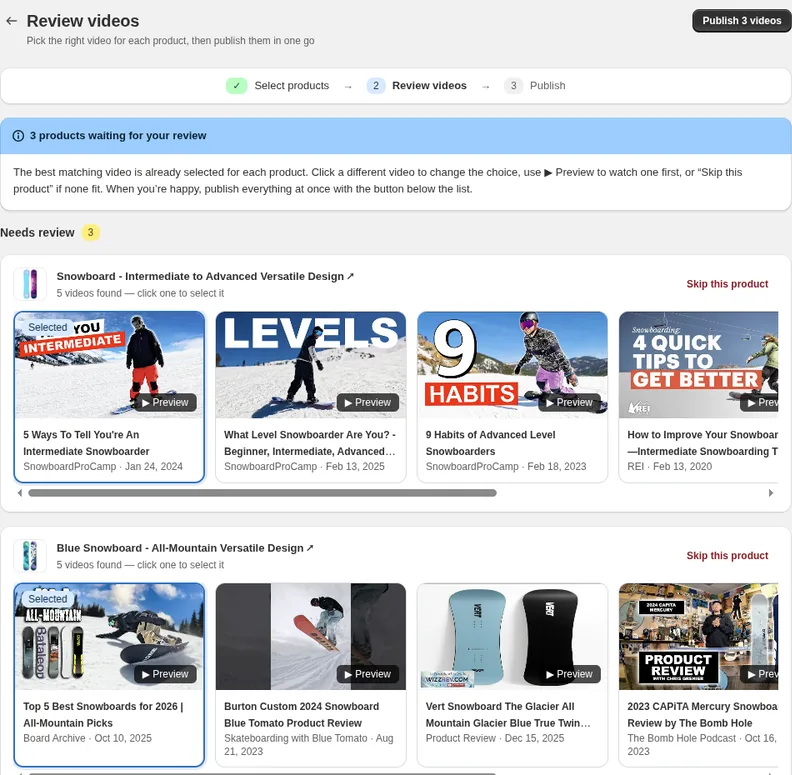
Five candidates per product, best match pre-selected. Click to change, Preview to watch, or skip.
3. Publish. One button publishes every video you picked. Add the app's Product video block to your product template once in the theme editor, and from then on each published video shows on its product page under a heading you choose ("Watch it in action" by default). Products without a video simply don't show the block.
The block plays the video in YouTube's privacy-enhanced player and loads it lazily, so it doesn't weigh on the page until the shopper scrolls to it. Nothing is uploaded to your store, and you can swap or remove any video later.
A word on what it won't do. It only finds videos that already exist on YouTube, so private-label and niche products often come back with nothing useful. It puts one video on each product, and it isn't a shoppable-video or UGC platform. If you need those, our guide to the best product video apps for Shopify compares the alternatives.
Install Norlif YouTube Product Videos from the Shopify App Store and try it on your best-known products first. Publishing up to 10 videos a month is free; Unlimited is $5 a month.
The short version
For products other people already film, the review video your shoppers go looking for already exists. Put it on the product page and they don't have to leave. Check that it's the exact model, actually a review or demo, and embeddable. For a few products, paste the link into the product's media. For a catalog, let an app do the searching and spend your time choosing.
Frequently asked questions
Is it allowed to embed someone else's YouTube video on my store?
Embedding uses YouTube's own player, which YouTube offers for exactly this. The video stays on YouTube, plays with the creator's name and channel on it, and the views count for the creator. Creators can turn embedding off for a video; if they have, the player shows an error instead, so skip that one. Don't download someone's video and upload it as your own file.
Will a YouTube video slow down my product page?
A YouTube embed loads YouTube's player, which is heavy if it loads with the page. Place the video below the fold and lazy-load it, so the player only loads when the shopper scrolls to it. The Norlif YouTube Product Videos block does both by default.
Can I add a YouTube video to a Shopify product without an app?
Yes. In the product's Media section, choose to add media from a URL and paste the YouTube link; most Online Store 2.0 themes then show it in the product gallery. That works well for a handful of products. The slow part across a catalog is finding the right video for each one, not pasting the link.
What if there's no YouTube video for my product?
Then this approach won't help for that product. It works for branded products that other people already review and unbox. Private-label and very niche products often have no video at all, and you'd need to film your own.
What does Norlif YouTube Product Videos cost?
Publishing up to 10 videos a month is free. The Unlimited plan is $5 a month for unlimited publishing. Both plans search up to 200 products a day, and changing the video on a product that already has one doesn't count against the free limit.
A video helps most when the rest of the page is already in order. Read next: how to write product descriptions in bulk, why your product titles are too long, and how to generate product images in bulk.