Shopify Title and Meta Description: Where to Set Them
By Mantas Vaitkūnas, Founder, NorlifLinkedIn 7 min read
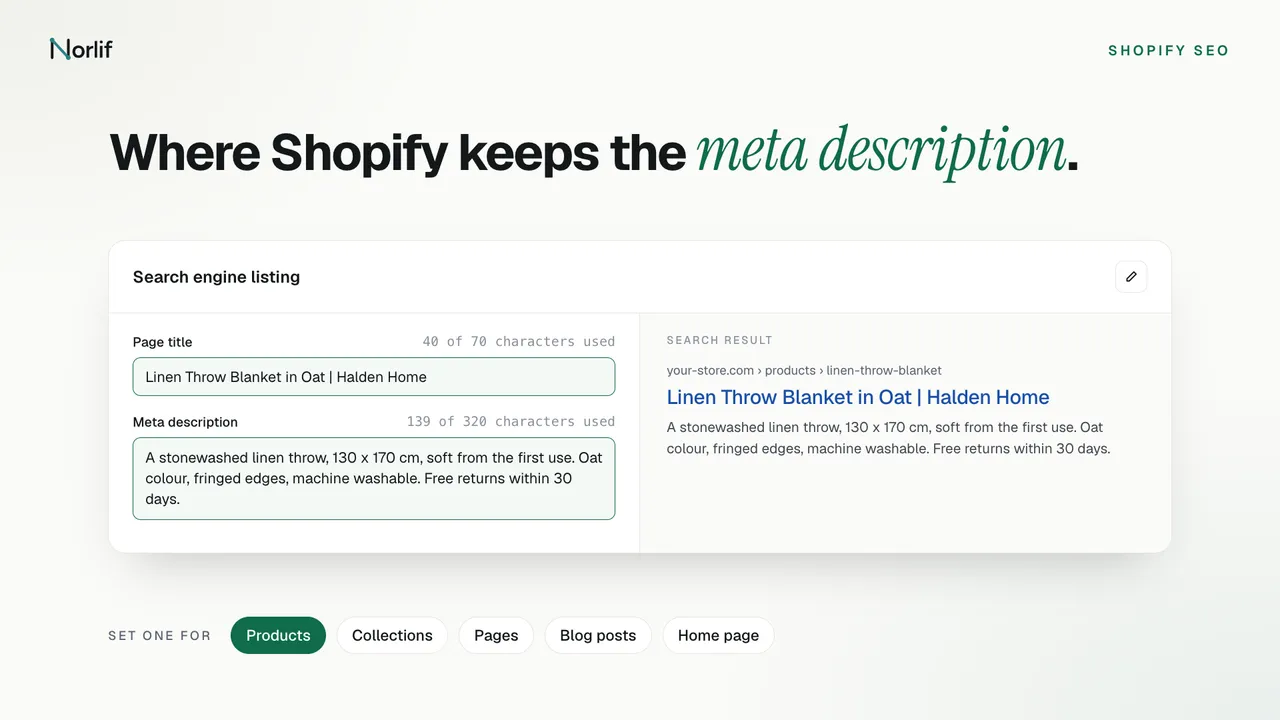
In Shopify, every product, collection, page and blog post has its own page title and meta description in a section called Search engine listing on its edit page. Open the item, click the pencil icon in that section, and fill in Page title and Meta description. The home page has its own pair under Online Store > Preferences. To change many at once, use the bulk editor for products and collections, or the SEO columns of a product CSV file.
| Content type | Where to edit it | In bulk |
|---|---|---|
| Product | Products, open the product, Search engine listing | Bulk editor, CSV, apps |
| Collection | Products > Collections, open the collection, Search engine listing | Bulk editor |
| Page | Online Store > Pages, open the page, Search engine listing preview | One at a time, or a third-party app |
| Blog post | Content > Blog posts, open the post, Search engine listing preview | One at a time, or a third-party app |
| Home page | Online Store > Preferences, Social sharing image and SEO | Not needed |
This post covers where the fields are and how to fill them. For how many characters each one takes and how much Google shows, see Shopify meta description length and page title limits.
Page title, product title and meta description
Three fields get mixed up. The product title is the name shoppers see on the product page. The page title is the text Shopify's help describes as the link in search engine results, and the CSV file calls it the SEO title. The meta description is the short summary under that link, called the SEO description in the CSV. You can set the page title and meta description without touching the product title.
What Shopify uses when the fields are empty
You don't have to fill them in. Here is what happens if you don't:
- Products. Shopify's CSV documentation says that if the SEO title is blank, the product title is used as the page title, and if the SEO description is blank, the product description is used.
- The store name. Shopify's SEO keywords page says your theme puts your shop name before or after the title of the content. In the example theme code, the shop name is added only when the page title doesn't already contain it.
- Collections, pages, blog posts and the home page. Shopify's help pages don't say what fills an empty meta description on these. It depends on the theme. To check, open the page in your store, view the page source and search for
name="description".
One trap in exports: Shopify's export page says the SEO Title and SEO Description columns are filled only when you customized those fields by hand. A blank cell means the product uses the fallback above, not that it has nothing.
Google has its own fallbacks. It says snippets are created mainly from the page content and that it sometimes uses the meta description when that describes the page more accurately. For the link text it uses the <title> element along with headings, the og:title tag and the text of links pointing at the page, according to its title link documentation. Leave a field empty and the theme and Google choose the words for you.
How to edit them one by one
Products
- In the Shopify admin, go to Products and click the product.
- In the Search engine listing section, click the pencil icon.
- Fill in Page title and Meta description. Change the URL handle only if you have to.
- Click Save.
Shopify's help page for this section says its preview is made from the product title, its URL and part of the description. It also says you can ask Sidekick, the assistant in the admin, to write a page title and meta description for a product, and review and edit the text before you save.
Collections
Go to Products > Collections, click the collection, then click the edit icon in Search engine listing and fill in the same two fields. If you change the URL handle, Shopify lets you create a redirect from the old URL, so links to the old address keep working.
Pages
Go to Online Store > Pages, click the page, then click the pencil icon in Search engine listing preview. Fill in Page title and Meta description and click Save. The steps are on Shopify's page about adding and editing pages.
Blog posts
Go to Content > Blog posts, click the post, then click the pencil icon in Search engine listing preview. The fields are the same, as Shopify's page on managing blog posts shows. The excerpt is a different field: it is what your blog's landing page shows, not the meta description.
Home page
Go to Online Store > Preferences. In the Social sharing image and SEO section, enter a title and meta description for the store and click Save. Shopify's preferences page says these are what search engines show for your home page.
How to edit them in bulk
The bulk editor (products and collections)
- Go to Products (or Products > Collections) and tick the items you want to change.
- Click Bulk edit.
- Click Columns and, in the SEO group, tick Page title (SEO) and Meta description (SEO).
- Type into the cells and click Save.
Shopify's bulk editing page doesn't list these columns. I checked the names in my own admin on November 19, 2026, for products and for collections. The same page says bulk editing for blog posts and pages is no longer available and suggests third-party apps instead, so without an app those stay one at a time. Shopify's own blog suggests the bulk editor for fewer than 50 products, and a CSV file or an app beyond that. More on the editor in the Shopify bulk product editor guide.
A CSV file (products)
- Go to Products, click Export and keep the file as a backup.
- In a copy, edit the SEO Title and SEO Description columns. Keep URL handle and Title, the two columns Shopify requires when you update products, and delete the columns you aren't changing.
- Go to Products > Import, add the file and select Overwrite products with matching handles.
- Review the summary and click Import products.
Shopify's CSV rules matter here. A blank cell in a column that is in the file overwrites the value in your store with nothing. A column that isn't in the file leaves the value alone. Without the overwrite option, rows that match an existing product are ignored.
Before you import, drop the file into the free Shopify SEO length checker. It runs in your browser and lists every product whose title or meta description is too long, empty or the same as another product's.
With an app (products)
The bulk editor and CSV move text you already have. Something still has to write it. I built Norlif AI Product Description for that. It runs on a collection, a vendor or the whole catalog, and meta titles and meta descriptions are separate choices in its run dialog. On its own, each is written from the product's own data for 1 credit per product. With descriptions in the same run, the meta description is written with the description at no extra credit. With titles in the same run, the app leaves the meta title empty so Google shows the new product title, also at no extra credit, and a meta title you set by hand is removed. You can hold the results for review before they reach Shopify, revert a run afterwards, and the first 100 credits are free. It works on products only, so collections, pages and blog posts still need the steps above.
Other apps do this too. The comparison of AI meta description generators for Shopify compares seven ways to do it, including free ones.
After you save
Google shows the new text only after it crawls the page again. Google says crawling can take anywhere from a few days to a few weeks. For a few important pages, you can request a crawl with the URL Inspection tool in Search Console. Requesting the same URL again won't speed it up. And even after a crawl, Google may still write its own snippet or title link if it finds a better match in the page.
Frequently asked questions
Where is the meta description in Shopify?
Open a product in the Shopify admin and scroll to the Search engine listing section. Click the pencil icon and the Meta description field is under Page title. Collections, pages and blog posts have the same section. The home page's meta description is under Online Store > Preferences.
What happens if I leave the Shopify meta description empty?
For a product, Shopify uses the product description instead, so the start of the description becomes the text a search result may show. Google builds most snippets from the page content anyway, but a written meta description gives it a summary you chose.
How do I change the home page title in Shopify?
Go to Online Store > Preferences in the Shopify admin. In the Social sharing image and SEO section, enter the title and meta description for your store, then click Save.
Can I bulk edit SEO titles and meta descriptions in Shopify?
Yes, for products and collections. The bulk editor has Page title (SEO) and Meta description (SEO) columns. For products you can also edit the SEO Title and SEO Description columns of a CSV export and import it back. Shopify no longer offers bulk editing for pages and blog posts, and its help page points to third-party apps for those.
Is the Shopify page title the same as the product title?
No. The product title is the name shoppers see on the product page. The page title is the link text in search results. If you leave the page title empty, Shopify uses the product title.
Why doesn't Google show my new meta description?
Either Google hasn't crawled the page since you saved, which Google says can take from a few days to a few weeks, or it chose text from the page instead. Google says snippets are created mainly from the page content and that it sometimes uses the meta description when that gives a more accurate summary.
Read next: how to write meta descriptions in bulk and product description examples and a template.
Sources
- Shopify Help Center: Edit the search engine listing for a product
- Shopify Help Center: Collection settings
- Shopify Help Center: Adding and editing pages
- Shopify Help Center: Adding and managing blog posts
- Shopify Help Center: Online store preferences
- Shopify Help Center: Adding keywords to improve SEO
- Shopify Help Center: Bulk editing
- Shopify Help Center: Using CSV files to import and export products
- Shopify Help Center: Exporting products
- Shopify Help Center: Importing products
- Shopify blog: SEO bulk editor
- Shopify.dev: Add SEO metadata to your theme
- Google Search Central: Control your snippets in search results
- Google Search Central: Influencing your title links
- Google Search Central: Ask Google to recrawl your URLs